
Building your flow
Now that you have created your flow, you are ready to add content and logic in the Flow Builder
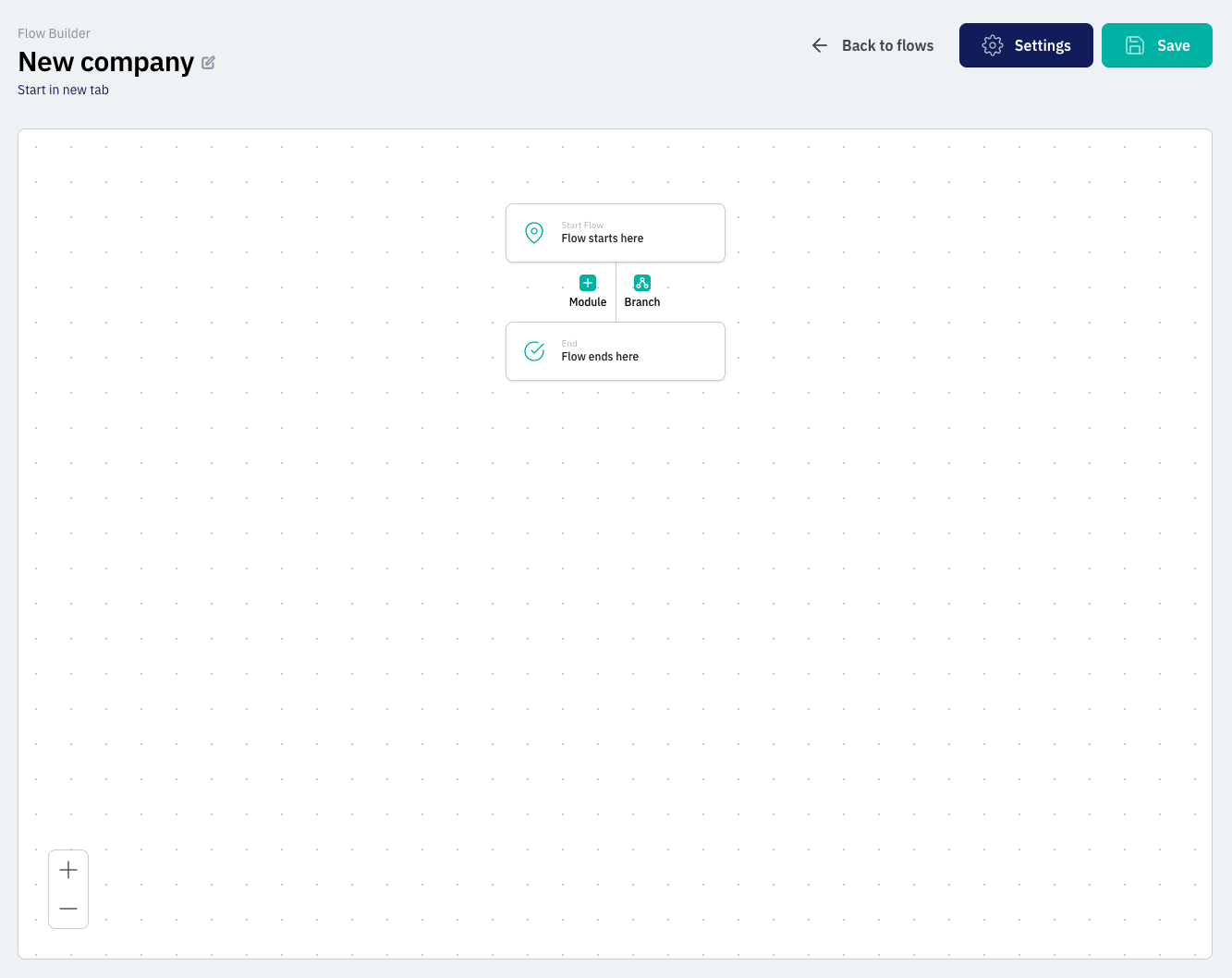
Add modules
Click the + Modul button located between the start and end of your flow. This opens a menu where you can choose from your available integrations and forms
Configure modules
Once you have added a module to your flow, you can click on it to open the settings. Here, you have three tabs to customize how the module behaves:
Set Input: In this tab, you can insert data inputs from the specific device or from other modules in the flow. Use this to carry information over from one step to the next.
Configuration: This is where you customize the visual presentation of the module. You can edit the Heading, Sub Heading, and Step description to guide your customers through the process.
Conditions: Here, you can set up logic for when the module should be shown. You can define specific criteria for when to "Use module when" or "Don't use module when" based on the data in the flow.
Test your flow
You can test your progress at any time by clicking the Start i ny fane link at the top of the builder. This allows you to see exactly what the customer will experience.
Save your work
Always remember to click the Save button in the top right corner before leaving the page. Your changes are not active until they are saved.
Ready to test? Now that your modules are configured, you can see how they look for the customer by clicking Start in new tab at the top of the builder.